Getting Started
A quick walkthrough to get you up and running with StrudelHub.
1. Create an account
Head to the registration page and sign up with your email address and a username. After submitting, you'll receive a confirmation email — click the link inside to activate your account.
Once confirmed, log in and you'll land on your dashboard.
2. Your dashboard
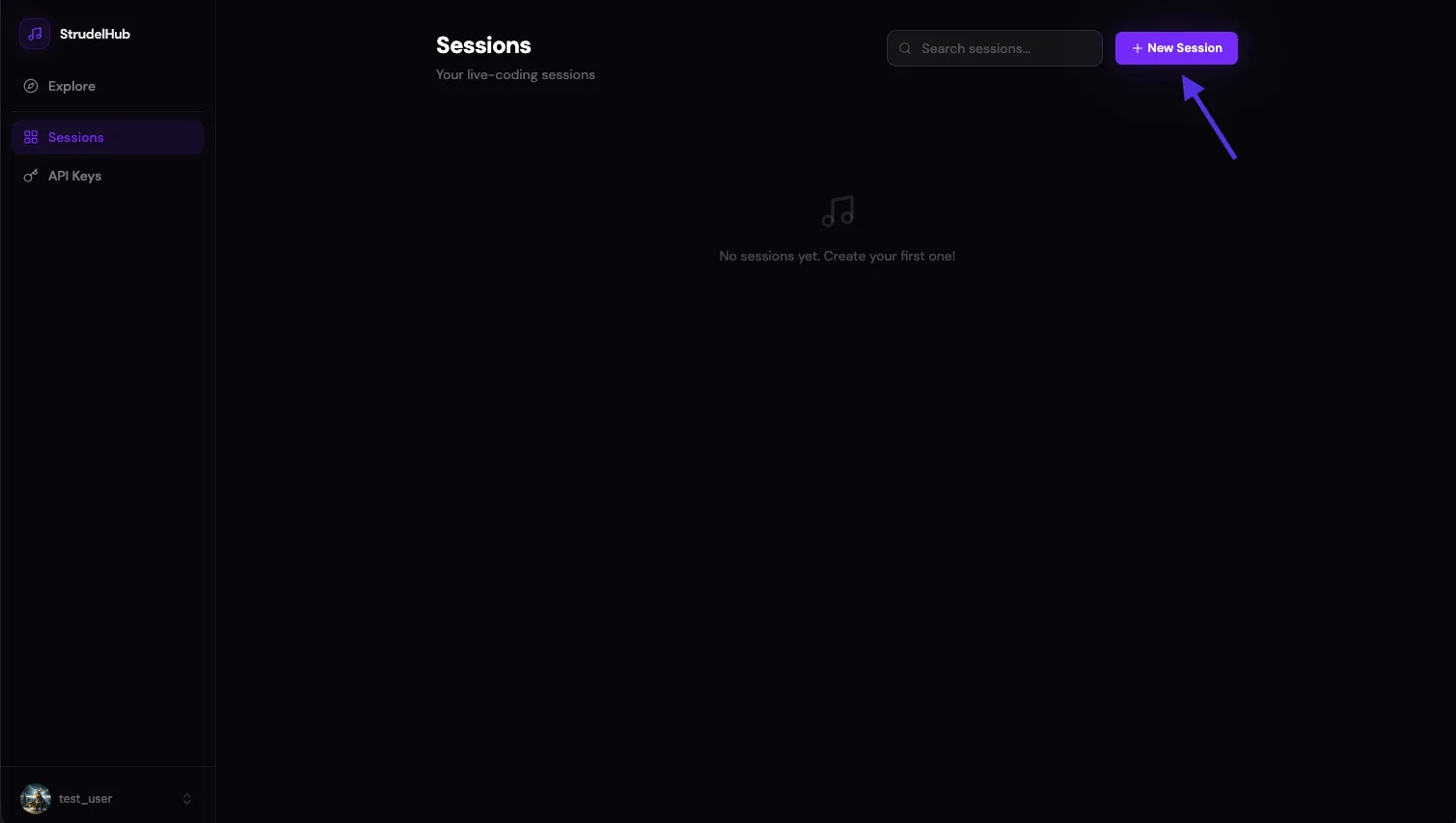
The dashboard is your home base. It shows all the sessions you've created, with the most recently updated ones at the top. From here you can search through your sessions, rename or delete them, and create new ones.
You'll also find links to API Keys and Account Settings in the sidebar.
3. Create your first session
Click the New Session button in the top-right corner of your dashboard. A new session is created immediately and you'll be taken to the session editor.
Each session has its own unique URL that you can bookmark or share.
4. The session editor
The session editor is where the music happens. It has a few key areas:
- Code editor — write Strudel code here. Syntax highlighting and auto-complete are built in.
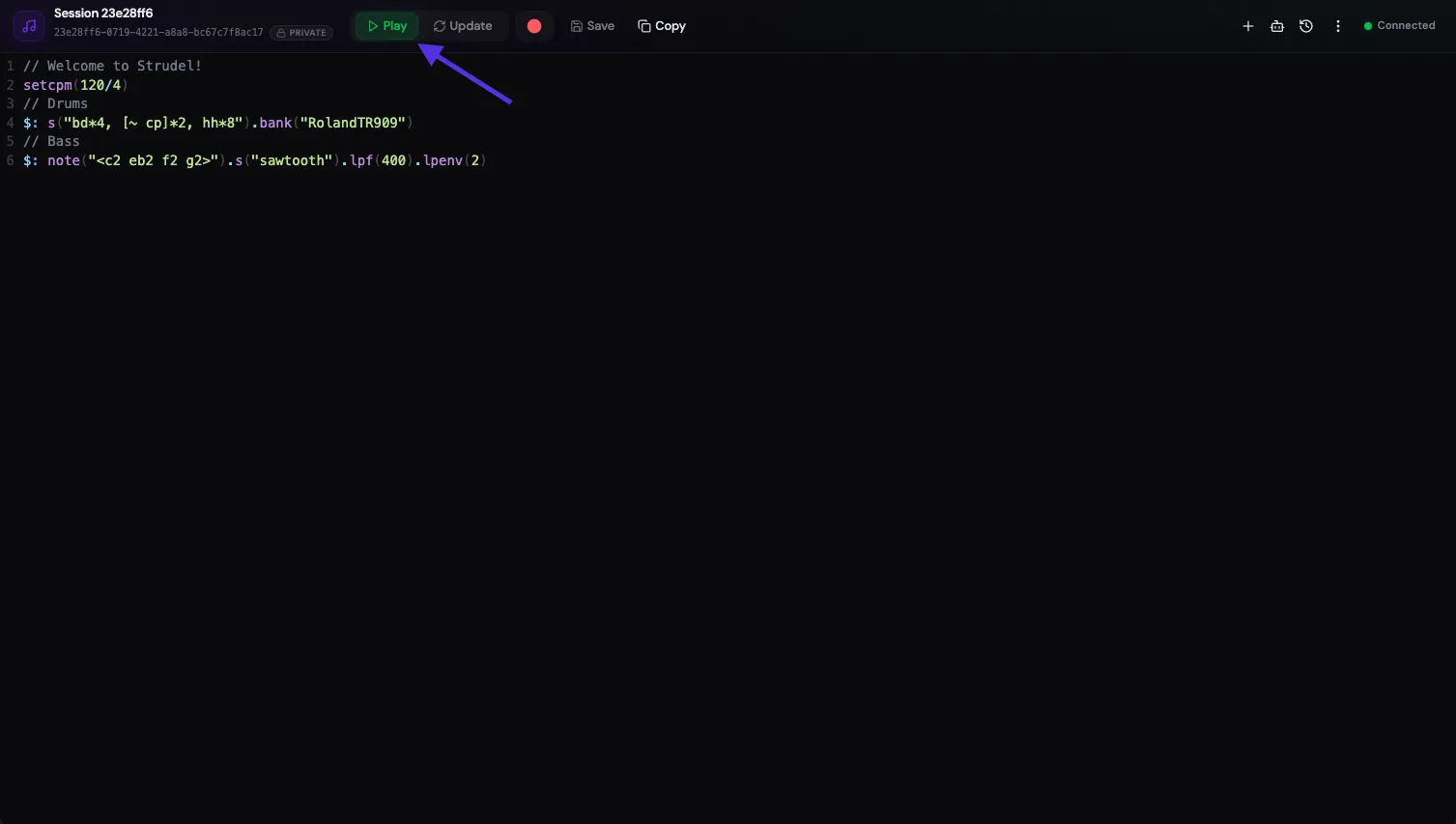
- Toolbar — play, stop, and save your code. You can also rename the session and copy its ID from here.
- Connection indicator — shows whether your browser is connected to the server for real-time updates.
Changes you make in the editor are local until you hit Save. Saving creates a new version snapshot so you can always go back.
5. Playing music
Write some Strudel code in the editor — for example, a simple drum pattern — and click the Play button. Audio plays directly in your browser, no plugins needed.
While playing, you can edit the code and click Update to hot-reload your changes without stopping playback.
If you're new to the Strudel language, check out the Strudel Basics page for some quick examples.
6. More to explore
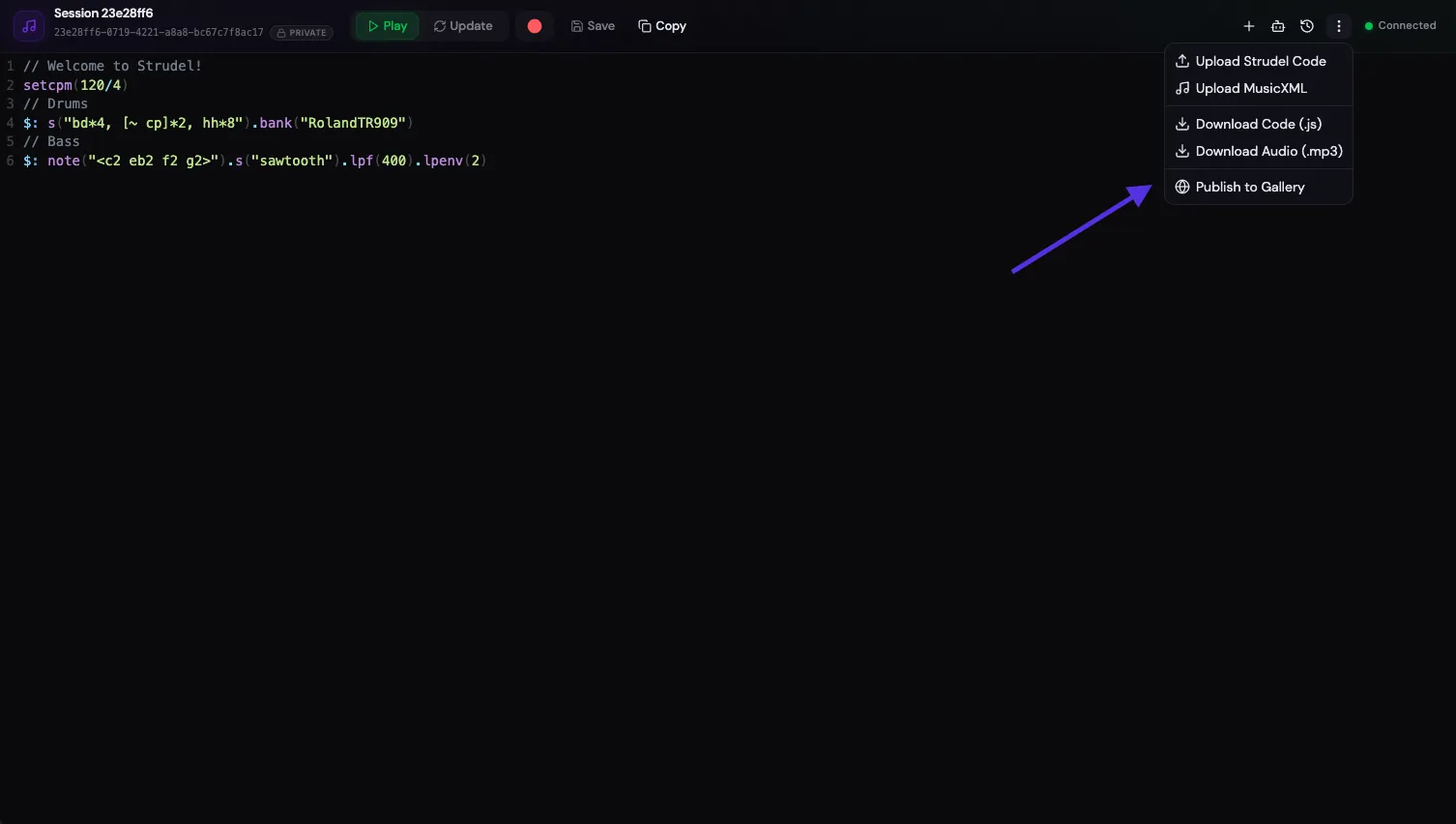
The session editor has several more features you can access from the toolbar and the overflow menu (⋮):
- Version history — browse and revert to any previous version of your code.
- Audio recording — record what you hear and download it as an MP3.
- MusicXML import — upload a MusicXML file and convert it to Strudel code.
- Publish to Explore — share your creation in the public Explore gallery.
- Visibility settings — make your session public so others can listen or collaborate.
Next steps
- Connect with Claude — let Claude write and play music for you.
- How to use the API — control sessions programmatically with an AI agent or script.
- Strudel Basics — learn the fundamentals of Strudel code.